
2/14/09

Much-desired feature finally restored to the Mac Finder

OS 9 had it, and Windows has always had it: the ability to select an item from the Trash, and restore it to its original location – wherever it was you originally deleted it from.

But for some reason, Apple dropped this incredibly useful functionality (along with window shades). Instead, you can only grab things out of the trash and move them manually to some other location. If you can’t remember where something was before you deleted it, you’re out of luck.

Good news: Reports are coming in that the next Mac OS version, 10.6 or “Snow Leopard,” will have a “put back” feature. This is really important for scenarios where a file you delete, accidentally or otherwise, needs to go right back to the exact same location where it started out.

The inability to do this has led a lot of users, myself included, to come up with clunky workarounds. For example, if I’m removing an application and its preference files, I end up creating a new folder on my desktop and re-creating the entire subdirectory scheme, moving elements manually into their appropriate folders. That way, I can delete the folder, knowing that if I drag the folder out of my trash back to my desktop at some point, I can figure out how to put things back together again.

If this feature makes it into Snow Leopard, that will be good news indeed – I can simply select a file in the trash, and click “restore” or “put back” or whatever Apple decides to call it, and have the file go back from whence it came.

Isn’t it stupid that this “feature” hasn’t been there all along?

2/12/09

Watercolors without the mess

I’m a photographer, not a painter. But I’ve always been intrigued by Photoshop techniques that can give photos new life – make them look like paintings, charcoal sketches, line drawings, etc.

I never really like the default effects in PS, and I sorta kinda know how to achieve some of these effects manually. But it can be a long, arduous process.

Enter Topaz Simplify and Topaz Adjust, two awesome plug-ins for Photoshop CS3 or CS4. After just half an hour or so of experimentation, I used these plug-ins to create new pieces of artwork from some photos in my collection. Here’s an example of a “painterly” look applied to an otherwise nondescript photo of my friend’s cat:

Before:

maxstraight

After:

max-blog

Simply and Adjust both let you work on a layer, making tweaks and adjustments to suit your taste, and save those sets of adjustments as pre-sets. Handy for applying the same treatment to a group of photos. You still have to know some image manipulation stuff to begin with, if you want to do anything more than the pre-fabbed default presets. But with a little time and experimentation, you can get some really cool looks. Here’s a heavily-manipulated version of a photo of a church I took in Lancaster last summer:

Church Towers 

You can take these two plug-ins for a 30-day test-drive by downloading them from Topaz Labs. Have fun!

2/11/09

Fake MobileMe email / phishing threat

 Ars.Technica recently posted an article about a new phishing scam that actually sounds like it has a chance of bamboozling many users: Bogus emails, purporting to be from Apple, which prompt you to update your .Mac / MobileMe account information:

“As usual, the e-mail is disguised to look like a legit message coming from Apple, but clicking on the provided link (so that users can "update" their billing information with a working credit card, of course) forwards them to a site that is not at all affiliated with Apple.”

Phishing, if you didn’t know, is something you’re not generally protected against just because you use a Mac. (unless the phish attempt has to do with installing malware or viruses which don’t run on Macs). Threats are platform-independent. In this particular case, there’s no virus or malware. Instead, it’s good old fashioned trickery and forgery, using “social engineering” to get you to make a mistake and turn over information you shouldn’t to somebody you don’t want to know.

6 Windows 7 Versions

We don’t know exactly when Windows 7 will be done, or what it will cost. But we do know that there will be six– yes, count ‘em – six different versions of Windows:

  • Windows 7 Starter
  • Windows 7 Home Premium
  • Windows 7 Professional
  • Windows 7 Enterprise
  • Windows 7 Ultimate.
  • Windows 7 Home Basic

Luckily for you, you only really need to worry about deciding between two of them, unless you run a business network of Windows computers.

Windows 7 Starter will most likely be available only via pre-install, from select manufacturers.  Windows 7 Enterprise and Ultimate are probably more than most “normal” users need. Windows 7 Home Basic is a stripped down version, which Microsoft says it will sell only to “emerging markets.” Meaning, mainly in second- and third-world countries, although not exclusively. Their list of emerging markets starts with Afghanastan and ends with Zimbabwe.

That leaves Windows 7 Home Premium and Windows 7 Professional. Pretty much the same split as with XP, where we have Windows XP Home and Windows XP Pro.

Microsoft will most definitely do a better job explaining the differences, at least if they’ve learned from their mistakes with Vista. Also, it’s important to note that you can actually upgrade to a higher level of Windows online – give MS your credit card, and you download whatever it is that turns one version into another. In other words, the core of all the various versions is identical, and all you need to do is unlock the additional functionality to upgrade.

ExtremeTech has a pretty decent, if not preliminary summary of the 6 versions of Windows 7. If your next new computer purchase happens when Windows 7 is the main offering, you might want to spend some time looking at the various versions and deciding ahead of time which is right for you.

In the XP days, I recommended that people buy the Pro version, even if it was for a home computer. It just made the computer more valuable on the used market, because Home was limited in what you could do in a multi-computer business network. Looks like the same advice may hold true for Windows 7.

1/31/09

iTunes Plus Upgrading Finally Done Right

Apple or the record labels or whomever could make the decision came through for once. You can now selectively upgrade your iTunes purchases to 256k, DRM-free versions!

If you’ll recall, I did some serious lamentin’ about having to upgrade my entire library in one shot at a cost of almost $500. So, I upgraded nothing.

Now, a trip to the iTunes Plus page shows an upgrade button next to individual albums or tracks. I upgraded my “must haves” (desert island discs, if you will) to the tune of about $50.

It’s not $500 for the labels – but they weren’t going to get that anyways.

1/23/09

What I wish were different about the Mac OS. And by different, I mean better.

There’s a derogatory term used on discussion forums for people who blindly support an operating system and poo-poo its shortcomings and weaknesses, despite all reasonable evidence to the contrary: Fanboy.

I’m no Apple fanboy. Yes, it’s my operating system of choice, and I recommend it to people whenever I can, but that doesn’t mean there aren’t things about it that make me nuts. Now, I’m in “corporate IT guy mode” at the time of this writing, so I’m setting aside all the great things the Mac can do as a creative tool and focusing on the work-a-day aspects of it.

featureswidget20060321 First-up: remote control. Quite frankly, Apple’s Remote Desktop feature is lame in many ways when compared to Microsoft’s remote desktop solution (based on the very mature and solid Terminal Services foundation). Apple RD is slow, allowing minimal customization of the remote view upon launch. You get a color slider, and that’s about it. Any adjustments you want to make to the remote GUI have to be done within the remote GUI. That’s absurd – why should I have to suffer through all those remote clicks and make trips to System Preferences? With a Microsoft RDC client, I can create a remote connection profile that specifies screen resolution, color depth, sound on/off, mapping local to remote drives, mapping printers, and more before I even connect. And the speed. Yikes. Microsoft’s RDC performs so well, sometimes I forget that I’m not actually at the computer I’m controlling.

Now, in fairness to Apple RD, it does do some things that Windows RDC doesn’t do. You can generate a variety of reports on remote systems, send application packages that automatically install software and reboot the remote system, and observe a remote desktop versus controlling it.  I just wish they’d fix the speed issue. It could be that part of that speed issue has to do with the Mac GUI itself. For example, there’s no way in OS X to turn off the fat, obnoxious drop shadows behind every window. Those drop shadows make remote control sessions slower, because the remote session has to draw that many more pixels.

Second – badly behaving network shares. Maybe this one should be first. Connect to a share on your network so that the remote volume mounts on your desktop. “Family Room iMac” for example. Fine. Now, go shut down Family Room iMac, return to your computer, and you’ve got about an 80-90% chance of staring at the bouncing beach ball for 2 minutes the first time you open a Finder window or click on the desktop (tip: force-quit the Finder to get out of this situation). Even if you don’t try to access that now-closed share. That’s ridiculous for an operating system with Unix underpinnings. Windows doesn’t do that. A Windows share does nothing at all until you double-click on its icon. And then, Windows just says “nope, that share’s not here” and lets you go about your business.

You can imagine how this little problem becomes a big problem in an office environment with 20 or more Macs connecting to each other, off and on all day. Invariably, somebody you’re connected to via sharing shuts down and goes home for the day whilst you’re still working. Grrrr.

Finder Third – Apple really needs to fix the shortcomings of the Finder. There’s even a phrase that’s been coined for this desire: “FTFF.”  You can figure out what the abbreviation stands for, ha ha.

Sometimes when I have to spend all day working on a Windows system, I realize just how much better of a workhorse Windows Explorer can be. The Finder just has too many maddening little quirks that surface after hours and hours of heavy lifting.

For example, one thing I can’t stand is that if select a bunch of files from one folder, and drag to copy to another drive or folder, and one of those files can’t be copied for some reason (it’s corrupt, or has a bad filename, whatever) THE WHOLE OPERATION TANKS. On Windows, you’ll get an alert about each and every file that can’t be copied, and you can decide to continue the operation with the rest of the files or cancel.

There are tons of other Finder “issues” – so many, that there’s a software company out there who’s main product, "Pathfinder,” is meant as a Finder substitute. I’ve purchased and used Pathfinder in the past, and always end up disabling it after a few months because of its system overhead and quirkiness. But I see that they’ve got a brand-new version out, so maybe I’ll give it another shot. I do miss its tabbed Finder windows and ability to customize all text and icons with OSX.

And finally, peer to peer file sharing on a network, with trusted computers set up with shares which everybody should be able to read and write to, is NOT as simple as it should be. In fact, it’s downright maddening. In this case, Apple technology does NOT “just work.” It’s not the Apple way. It’s more like the “obscure Linux way” or something. I’m sorry, but Windows NTFS settings for permissions and file shares are much, much easier for me to work with.

I can imagine how somebody with less experience might go mad trying to sort out peer-to-peer sharing. I have issues on my company’s network with shared folders that I’ve never, ever been able to figure out, and believe me I’ve tried. Sometimes they work for one user, but not for another with the exact same setup. Sometimes you have to authenticate when you want to put a file into a Mac share that’s explicitly set to be wide-open. Other times, you have to enter a password to copy, move, or even open files ON YOUR OWN HARD DRIVE if somebody else put them there via file sharing.

How about you? Where do you think Apple could make improvements to its operating system – whether compared to Windows or not?

1/21/09

EyeTV: A Fantastic Addition To Any Mac

int_250plus_gallery_05bI’ve been using an Elgato EyeTV tuner for about a year now, and just realized that I should probably share a great product like this with y’all!

Not literally, mind you. I love mine way too much to part with it.

Anyways, the EyeTV is a small, simple USB device. Plug-in your coaxial cable and hook it up to your computer via USB, and you basically turn your computer into a TV. On my monitor, a 24” widescreen Dell, it’s like getting a brand new LCD or plasma TV at a fraction of the cost of a stand-alone set – and without taking up any more space. You can watch TV full-screen, or choose from a variety of sizes. I often have the news running in a small window, tucking it into the corner of my screen while I work.

viewer

Even better, it comes with Program Guide software that shows you a list of everything that’s on TV – and you can just click a channel to view. All you have to do is provide it with your cable provider info and zip code, and it does the rest.

You can also record programs, too – just click on the little record button on a show in Program Guide, or manually hit the Record button on the EyeTV “remote.” (Actually, it comes with a REAL remote as well, which works directly with the EyeTV box for changing channels and volume). You can save your recordings to a variety of formats.

And the EyeTV works like a Tivo – you can pause a live show and rewind, perfect for those quick trips to the kitchen.

program_guide
The EyeTV Program Guide

There are a couple different versions to choose from. I’ve got the 250, which also gives you the ability to plug-in a VCR or camcorder and dupe content. The new EyeTV hybrid looks really, really interesting:

“New! Now with improved reception, FM radio, and TV Guide

EyeTV Hybrid turns your Mac into the world’s most affordable flat-screen HDTV and DVR. EyeTV Hybrid receives both analog and digital TV as well as FM radio, and can also record from a cable or satellite set top box, a video recorder, and a camcorder, using composite or S-Video (analog) connections.”

The only problem I’ve had with mine so far is that if I have it running and plug in my iPhone, it drops the cable TV signal. A simple restart of the EyeTV software is all it takes. I suspect this is probably more of a USB issue than anything else.

The only other problem with it – if you’re a Windows user, that is: this is a Mac-only product.

1/17/09

Windows Live Writer – Something New, Something Useful From Microsoft.

One thing I stumbled across when trying out Windows 7 was Windows Live Writer, part of the Windows Live Essentials collection which you can download for free from Microsoft. The Essentials collection, by the way, also contains Microsoft’s email, instant messenger, Movie Maker, and Writer programs for Windows 7. Those programs apparently will not be included by default with Windows 7, unless this has something to do with the beta period. Note, too, that you can run Live Essentials programs on Windows XP.

windows-live_dl
Windows Live Essential Options

Anyways, Live Writer gives you a word processor style tool for editing content on your blog. Just give it your blog address, username, and password, and it downloads the theme so that you can work in WYSIWYG mode. And it’s a way better typing/editing environment than the browser, at least for me.  Inserting images, tables, and lots of other goodies looks to be really easy.

Below is a screen snap of the very window I’m writing this blog post in right now. Careful – it’s like that looking in a mirror into another mirror trick; you might get vertigo.

windows-livewriter
WYSIWYG Editing with Live Writer is sooooo much nicer than using the Web interface

Very, very handy tool. It looks like it covers all the bases for editing your blog, including downloading your tags, showing a preview version, saving drafts, etc.

I with there was something like this for OS X. Maybe there is. Until now, I haven’t thought to look for ‘cause I didn’t know such a thing existed. Mac-using bloggers – anything out there like this for OSX?

I think I’ll install Live Writer into my main Windows XP virtual machine. It’s the first program to come along in a long while to give me a little touch of Windows envy, and it makes blogging – a task which I enjoy but still takes a lot of work – a little more pleasurable.

windowslive-3
Browse or search all your blog posts & choose one to edit. Sweet!

1/13/09

"OS Rot" - Like vulgarity, it's hard to define. But you know it when you see it.

I don’t think there’s a single Windows-using tech support customer of mine out there who hasn’t heard me talk about Windows “OS Rot.” I’ve even blabbed about it in other blog posts.

There’s a great piece by Adrian Kingsley-Hughes at ZDNet called “Windows Bit-Rot: Fact or Fiction?”  He takes a look at whether OS Rot is real, imagined, or mainly just used as a way to justify getting a bigger-better-faster new PC.

Turns out the debate can really come down to semantics. Yes, if you install tons of badly-behaving applications over the years, uninstall things, and generally junk up your computer, it will get slower and less reliable. But some would argue, that’s not really the operating system’s fault per se.

Anyways, check out the article and the discussion thread that follows it. Some good reading for computer nerds to be sure. However you define it and determine what causes it, the results are the same: if you actually USE your Windows computer, it will eventually start to slow down. The only way it stays as fast as the day you took it out of the box is if you don’t use it.

And by and large, in my experience this simply does not happen on OSX. Maybe the upcoming Windows 7 operating system will make bit-rot a thing of the past. I’m not betting on it though.

1/8/09

Still using XP but thinking of upgrading to Vista?

Not so fast there, my pioneering amigos and amigas.


If your computer is running Windows XP fairly well right now, you might want to skip Vista and wait for the Next Big Thing from the folks in Redmond: Windows 7.


Windows 7, scheduled to be released either later this year or early 2010, is getting some pretty good reviews. Although it’s available in public beta right now, I haven’t downloaded and tried it out yet. I plan to this weekend. 


Everything I’m reading tells me that Windows 7 will be a much better release than Vista. 


For starters, Vista represented a major re-tooling or re-write of the previous operating system, Windows XP. Early adopters had to put up with a lot of compatibility issues (drivers, etc). The road to its launch was filled with potholes and there was some sufferin’ early on.


Windows 7, on the other hand, is more of an incremental upgrade. Microsoft is supposedly really focusing on making sure it’s compatible out-of-the box with current hardware and software. 


They’ve also been working hard at improving performance. This is the stuff I can’t really claim to understand. But suffice it to say they’ve found ways to cut-out inefficient code and just make it work better (like OSX, ha ha). Testers have reported faster startup and shutdown times and overall zippiness when working with applications and files. Sweet.


They’ve also added a slew of useful control panels and other applets. One new feature called “Peek” does pretty much what Apple’s “QuickLook” gizmo does - let you click a single button to get a preview of what a file is, without having to launch its corresponding application. Also on tap are new home networking features, something called “Jump Lists,” new gadgets (think: Apple Widgets), multi-touch support, and improvements geared specifically to notebook and tablet users.  


Finally, Microsoft is said to have listened to customers when it comes to all the things they dislike about Vista.  The Start menu area has been simplified, the Taskbar improved, and the much-aligned UAC system is more tweakable. 


UAC, short for User Account Control, is one way Vista is supposed to be more secure than XP. With UAC prompts in Vista, you’re notified when system changes are being made. The process takes over the desktop until you decide what to do).  Apparently you have more control over UAC in Windows 7.


Side note: I’ve always thought that people were a little hard on Microsoft over Vista’s UAC. Yes, it can be annoying sometimes. But try running a computer loaded down with malware and spyware, if you really want to be annoyed. Besides, if they didn’t put in the UAC controls, people would complain that Microsoft still wasn’t taking security seriously).


Anyways, like I said - I haven’t gotten my hands on Windows 7 yet. But when I do, I’ll take it for a spin and report back. It’s an interesting time for computing - a new version of both Windows and the Mac OS are forthcoming, USB 3.0 devices are starting to appear, storage keeps getting bigger and cheaper, bad guys find new ways of attacking us on the Internet, and Google keeps rolling with the punches. 


I guess I won’t have many excuses for posting to my blog so infrequently!

1/6/09

The iTunes Music Store: DRM-free, yes. Stress-free? Not so much.


So another Macworld has come and gone, with less fanfare than usual because Steve Jobs wasn’t there. Oh, and there weren’t any bombshell product announcements. But mainly, His Steveness wasn’t there.


But something pretty significant did happen that will affect millions of consumers - and maybe you, too: the iTunes store has gone totally DRM-free with all its music offerings. Well, almost. 8 million songs are now available without DRM, with 2 million more to follow by April.


(For the less technical readers in the crowd, relax - I’ll explain what DRM is shortly).


Are you one of those music consumers? Are you wondering what all this means to you? Let me try to help you out. I think the best way to explain all this is to look at it chronologically. I’ll make some gross oversimplifications for the sake of brevity.


When the iTunes store was launched in 2003, it was, how shall we say, “interesting.” There were a LOT of naysayers at the time. But there were also many of us who saw how this could turn into a pretty big deal, real fast. Consumers could finally purchase music online - quickly, easily, and legally. Through the iTunes interface, you set up an iTunes account by simply creating a username and entering a credit card number. Within minutes, you were shopping for music online. Impulse shoppers and instant gratification seekers, lookout!


So you browsed the iTunes store, previewed some tracks, maybe read some of the reviews. And then you simply clicked the little “buy” button next to an album or song, and viola! Your purchased music began downloading. You could play those songs on your computer, copy them to your ultra-cool 5 gig iPod, or burn a CD.


Those purchased MP3s were 128 kbps-quality MP3s. Not great, but workable (by comparison, a “factory” audio CD is 1400kbps). But people didn’t seem to care. It was so much more convenient to be able to store thousands of songs on your iPod, complete with album and artist tagging, playlsts, ratings, and so forth. This period was the beginning of the end for the bulky, skippy, battery-eating Sony CD Walkman. Remember those?


Anyways, more significantly: those songs were "wrapped" with invisible DRM code. DRM stands for Digital Rights Management. Apple’s brand of DRM technology is called “Fairplay.” (other companies have different names for their own versions).

The purported goal of DRM was to lock content to its purchaser, thereby preventing or at least hindering piracy. Because those songs were wrapped with DRM, you could only play them on your computer, or up to 4 other computers which you previously authorized with your account and credit card.


If you copied the DRM'd iTunes songs to my computer, they wouldn't play. iTunes would “phone home” to the iTunes Store and pop-up some sort of error about the track not being authorized for my computer.


Despite the DRM and low audio quality, the Apple iTunes store became insanely great. It has sold 6 billion songs so far, which is 70% of all online digital music sales worldwide. It’s the largest legal music retailer on the planet, a busy hub for all kinds of content, including TV shows, movies, “Essentials” collections, celebrity playlists, etc.


Over time, other online music retailers started offering music without DRM - Amazon, for example. It’s not clear why they were able to do this, while Apple’s offerings remained “hampered” with DRM. Some speculate that it was a way for the labels to keep Apple from becoming too powerful. It had become the 800 pound gorilla in the room, especially considering (or maybe because of) the iPod’s dominance in the MP3 player market.


But finally, in early 2007 Apple announced a new offering - iTunes Plus songs and albums. iTunes Plus tracks were DRM-free, and at 256kps they were twice the quality. But, only one label - EMI - was onboard. The other labels were still holding out. So the iTunes Plus initial offering was quite small compared to the overall size of the store.


At first, iTunes Plus songs cost $1.30 per track, which was higher than the cost of “regular” DRM’d music. But you could upgrade any EMI tracks to DRM-free by paying the difference of 30 cents per track, or about $3 per album. You clicked on the new iTunes Plus icon at the music store, and Apple would check your purchase history to see which songs were eligible. You could upgrade all your DRM’d content to DRM-free in one shot. The new, better quality versions downloaded and replaced the old versions automatically.


Again, the catch was that only songs from the EMI label were offered. If your purchases were from Warner, Virgin, Sony, or other labels, you were still stuck with DRM. I did the upgrade, and I think it cost about $70 at the time.


In fairly short order, the price of brand-new iTunes Plus content came down to match the normal content; you still had to pay the smaller fee to upgrade existing songs, but anything you bought brand-new in the iTunes plus category cost the same as DRM’d stuff.


Which brings us back to the Macworld announcement. All the major labels are now onboard, and the entire music catalog on the iTunes store will soon be DRM-free. Once again, users can click on the iTunes Plus icon in iTunes, and Apple will look at your purchase history and figure out what you’ve purchased that qualifies for upgrades.
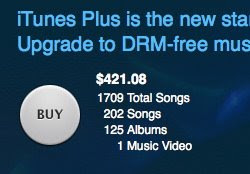

Naturally, I did this. And the grand total to upgrade all my iTunes store DRM purchases to iTunes Plus? $421.08. Yikes! (at first, it reported almost $700, but then it dropped to $421. Not sure what’s up with that, but it’s likely to go up again after the other 2 million tracks are added. I’m havin’ a conniption either way).


Anyways, I know that I’ve purchased a lot of music from the iTunes store over the years. So this shouldn’t have been a shock. But still, that’s a BIG chuck of change for an upgrade to music tracks which I already own and can still listen to and enjoy.


My biggest beef is that I can’t SELECTIVELY upgrade. I have to upgrade EVERYTHING, including albums I don’t like or no longer listen to, and tracks I purchased to burn to a CD to give as a gift. It doesn’t even matter if the songs are still on my hard drive anymore; Apple looks at your purchase history.


Also, although the sound quality upgrade to 256k would be a huge improvement for most of my tracks, it wouldn’t be for EVERY track. For example, I sure would like to exclude some of the early Frank Sinatra albums from the upgrade. They’re mono recordings, and I seriously doubt they’d sound any better at 256 than 128.


I don’t fault Apple or the labels or whomever for charging for these iTunes Plus upgrades. After all, these tracks are in essence new and improved products. In the rest of the consumer world, new and improved versions of things come out all the time. And converting everything to the new format was likely an enormous undertaking, not to mention the bandwidth charges Apple will incur as people upgrade their libraries.


I’d just like to be able to choose what to upgrade. Right now, it’s all or nothing. Which means in my case, Apple gets nothing. Talk about bad timing - how many people, in this shaky economy, are going to pay for something a second time, especially something so plainly discretionary as music?


The other aspect of this which people don’t talk about much is the DRM system on Apple’s side. Once everything is DRM-free, Apple is not going to want to maintain its expensive DRM infrastructure forever. It’s gotta be a vast enterprise. At some point they’ll want to shut it down. Does that mean your DRM’d music will no longer work? Maybe.


Yes, you can always burn your DRM tracks to an audio CD, then re-import as standard MP3s with no DRM. But that’s a hassle and it reduces sound quality. And I’ll bet a lot of people just won’t do it, either because they don’t know how - or they don’t realize that their “Right” to play content with Digital “Rights” Management will eventually disappear.


If Apple decides at some point to shut down its DRM servers, we can only hope that they’ll at least give us a free utility to remove DRM from existing tracks in our libraries, without necessarily upgrading quality. That sounds like a fair compromise to me - what about you?


12/6/08

New Macbooks - Mostly Hits, One Miss

The new Macbooks are pretty sweet.

They've improved in almost every category: better screen (with LED backlighting); svelte, lighter aluminum bodies; and of course faster processors and video cards. Oh, and there's that really cool-sounding enlarged iPhone-ish trackpad thingie. I say "cool sounding" because I really haven't had a chance to play with one yet.

One thing, however, has a lot of the Apple faithful scratching their heads: the new Macbooks no longer have FireWire (FW) ports. Not FW 400, not FW 800. Nada.

If you don't know what FireWire is, then I guess you may not miss it.

But the rest of us will miss:

  • FireWire's speed vs. USB. With all other things being equal, a FireWire connection to an external hard drive is WAY faster than USB 2.0
  • Migration assisant via FireWire. Upgrading a new Mac sure is a lot easier when you can just hook up your old one via FireWire, run Migration Assisant, and let your new Mac do all the work of bringing things over from the old system. Apple has updated the migration utility and supposedly it now works with USB, but see point number one regarding speed.
  • Hooking up our video cameras to our Macbooks. If you've got a camcorder and its connection to your Mac is FireWire, you're out of luck. So if you're in the market for a new Macbook, you'll have to either skip the Macbook in favor of the more expensive Macbook Pro, or get a new camera that uses USB. Or stay put. This is the most aggravating problem with regard to dropping FW, especially considering that new Macbooks still come with iMovie. How do they expect people to get their footage from the camera into iMovie?! (Steve Jobs made the point that new cameras are dropping FireWire. C'mon Steve, we know that Apple wants to already be where the standard will be for everybody else a year or two down the road. But this move doesn't give anybody an alternative. At least when Apple dropped the floppy drive years ago (and people complained about that), you could get an external USB floppy drive if you really wanted one).
  • Using audio gear with our Macbooks. I don't do this myself, but a lot of audio pros take Macbooks into the field because they're so small, light, and dependable. And Macbooks can run audio software such as Logic and Protools quite well. But guess what? A lot of that expensive hardware is FireWire based.
All of this points to why Mac fans are calling this one of the dumbest moves in a long time. Especially when you consider that Apple made FW famous - and that other computer manufacturers have been adding, not removing, FW. How embarassing for us now, when our Dell-toting friends can hook up their FireWire devices, but we can't. And for those with a substantial investment in FW hard drives and enclosures, I feel your pain.

I have yet to hear a good reason for dropping it from the Macbook. At least they could have made it optional; I'd pay an extra $25 for the FW port - which probably cost a buck to include in the first place.

There's an interesting thread about this on ars.technica, if you want to hear what others are saying about Macbooks sans FireWire.

Crossover - another Windows solution

Parallels and Fusion are great applications for running Windows programs on your Mac, but how about this:

There's also a way to run Windows programs on your Mac...without Windows!

It's called Crossover, and it's based on WINE technology. WINE is not the same thing as virtualization; it stands for "Wine Is Not an Emulator." I guess it doesn't matter to you or me what the technical distinctions are, really.

Anyways, Crossover is really handy for some of the same reasons Parallels or Fusion are handy - but in one regard, it's more handy. You don't have to boot an entire virtual operating system (XP or Vista, etc). You can launch just the Windows program. I use Crossover most for Internet Explorer - I can test web pages with it, and I find that certain Web sites (like our company's Outlook Web Access) work better in IE than anything on the Mac. For some reason, GoToMyPC works better using Internet Explorer, too - so much better, that this alone makes it worthwhile to me.

Below is a capture of my desktop, where I'm running Internet Explorer and Microsoft Publisher 2007 using Crossover. No Windows XP operating system is loaded, just the programs - which actually saves a good amount of RAM. I'm only using the RAM these programs would normally use, with no overhead for the OS.


Again, I could do the same thing using Parallels, and sometimes I do if I've already got Parallels loaded, but if I want to quickly just check my company's web mail system, IE is just a few seconds away.

Or maybe I couldn't do the same thing with Parallels. What if I no longer had a PC and no longer had a Windows XP installation CD, but I still had my Office 2003 discs and serials? I could still make use of them with CrossOver.

Now, Crossover is a little more "wild west" than Parallels or Fusion. It only supports certain Windows programs. You can try programs not on the official Crossover list, but you're on your own at that point and the good people at Crossover make no guarantees about their stability.

Some things are really, really hard to get working right in Crossover. It's hard to explain. If a program depends on certain Windows components aren't really there, then it could get hinky. I've had trouble getting network printers to work right with certain Windows programs running in Crossover. Another example would be updates, like Microsoft Office updates. Because the Microsoft updating system is so dependent on the operating system - which isn't there - you have to wait for the Crossover people to release their own versions of the updaters. I know, it can make your head spin.

But for quick and dirty Windows program work, this could be a nice thing to have in your bag of tricks. CrossOver's standard version costs $40.00.

12/1/08

DSLR or Point and Shoot?

"I want a digital camera - but I'm not sure what to get? Should I get one of those fancy DSLRs or will a point-and-shoot (compact camera) be enough for me?"

I get this question a lot - but never as much as when the Christmas holiday is approaching.

The answer depends on a lot of factors - but mainly, it comes down to how you plan on using your camera. What kind of photos, and in what sort of environments, will you take? Casual snapshots? Photos for your eBay store? Your kid's baseball games? Nature?

Once you have a good idea about your photography needs, then you can evaluate the differences between the two and determine which will best meet your needs. With that in mind, here's a quickie overview of the differences that are important to most people.

Point and Shoot / Compact Cameras

Point and shoots (PS) have come a long way over the years, and most of them in the $300-$500 range take really nice pictures (with some caveats, however, which I'll touch on later). They're small and they have great battery life, making it easy and convenient to take lots and lots of pictures - at parties, reunions, school plays, etc. They have large, clear displays you can use to frame your shots and review your photos. P-S cameras, because of the kind of lenses they use, often make great macro (close-up) cameras.

P-S cameras generally don't pre-suppose that you have any photography expertise. Most people just fire-away in "Auto" and are fine with the results. P-S cameras also offer various "Scene" modes that adjust the camera settings for you based on your current situation - sports, portrait, nightime city scenes, snow, etc.

They're fairly inexpensive, come in different styles and colors, and there are a huge variety to choose from.

Now to the negatives. Most P-S cameras have the same drawbacks. The first which most people notice is the long lag between shots. If you want to take photos of anything moving faster than, say, a kiddie pony ride at the county fair, you'll have to rely on your own timing to "get the shot." By the time you snap an action shot and your P-S camera is ready for the next, the action will be over with.

Also, your P-S lens is the only lens you'll have, so you're stuck with whatever its limitations are. They're usually OK on the wide end, but you won't be zooming in on football action like a Sports Illustrated shooter. You're also limited to the camera's onboard flash, which is usually harsh and underpowered.

Digital SLRs

As you can guess, the weaknesses of the P-S camera are the strengths of the DSLR, and vice-versa.

First, the glass. DSLRs give you a lot of choices and flexibility when it comes to lenses. You can change lenses - add a high-powered zoom for sports or wildlife, or a wide-angle lense for indoor shots. If you've got the money, you can buy fast lenses that let you shoot in low-light situations without flash. I've got a 17-55 f2.8 Nikon lens that stays on my camera most of the time because of its very useful zoom range and great low-light capabilities. You can also add filters to your lenses, for changing the color cast, polarizing, etc.

DSLR cameras can also take photos in fast bursts. My Nikon D300, for example, can fire-off about 7 or 8 frames PER SECOND. So when action is headed my way, I can hold the shutter down and get a whole sequence of frames from the action. There are usually one or two keepers each time I do that. With P-S cameras, it often comes down to sheer luck.

DSLRs also offer RAW image formats as well as JPEG. RAW is something worthy of its own post, but suffice it to say that it gives you a lot more flexibility AFTER the picture is taken, when working with imaging software such as Lightroom, Photoshop, etc. You can make adjustments to your images in an entirely non-destructive manner that might not work so well with standard JPEGs - changing the white balance after-the-fact, pulling details out of shadows, excellent black and white conversion, and so forth.

The ability to use a speedlight or external flash cannot be overlooked, either. Speedlights have more power and more flexibility, allowing you to rotate the flash head so you can bounce the flash or light from different angles. You can increase or decrease light output, too. They can be used off-camera with a bracket - or even ten feet away, totally removed from the camera, via a wireless connection. Depending on the camera, you can even use multiple external flashes to achieve some pretty great lighting effects.

The downsides to DSLRs? Well, size and weight. I've opted for taking the family P-S camera to Hershey Park because I didn't want to lug-around the "big guy." If you're just after some quick snapshots to record the moment, you don't want to carry around 10 pounds all day. Five or ten pounds doesn't sound like much, but believe me - I've done some gigs where I was sore for days after the shoot.

DSLRs are easier to use than ever, but they still assume a certain level of expertise unless you just want to stay in "Auto" all the time. To really get the most of your DSLR, you may need to invest some time in understanding concepts and settings and topics such as aperture, shutter speed, depth of field, ISO, and so forth.

Expense is often the biggest consideration. A quality DSLR from Canon or Nikon, with a good starter lens, storage cards, etc., is going to set you back at least $1000. And if you're new to DSLRs and photography, understand that after a while you may get the urge to look at all sorts of accessories - new lenses, tripods, speedlights, vertical grips, etc.

Hear this advice and hear it well: when it comes to DSLR photography, "the poor man buys twice." You want a new lens for your camera, so you start to shop around. You see some pretty big differences in price. One lens looks pretty decent, and costs $400. Another, with (seemingly) similar characteristics, costs $1600.

So you go for the $400 lens. Lots of people do that, and are perfectly happy with their choices. But if you really, truly, firmly believe that photography is something you really want to get in to, if you're improving your skills and even pondering making some bucks from it here and there, don't opt for the cheap lens. Wait. Save. Buy the good glass. Camera bodies come and go. But a quality lens can last decades. You might upgrade cameras five times but the lens stays with you.

And besides the photographer, it's not so much the camera body that makes for a quality image. It's the lens, period. I'd rather have my old, first DSLR back again (a D70) with my GOOD lenses, than a brand new D700 with cheap glass.

That saying about the poor man buying twice? It refers to people (myself included) who ultimately buy the better lens AFTER buying the lesser one, and either end up with a bunch of unused lenses sitting on the shelf, or taking a loss by unloading them on ebay or at the local camera shop. And boy, do you take a loss on cheap lenses. The market is flooded with them, so you might get 25% of its original value. A quality lens, on the other hand, holds its value very well.

Now, you might not be able to afford expensive lenses, and photography might not be a serious endeavor for you, and that's fine. But I think it's helpful to at least keep this dynamic in mind when getting started.

There are a TON of other things I could discuss here, but this is already getting pretty long. If you have questions or want specific advice, please, by all means post back to this blog. I'm a Nikon guy, so I usually recommend and am most familiar with Nikon DSLRs. But I've heard that Canon makes superior compact cameras.

Here are some additional resources to help you decide:

YouTube Video - Digital SLR versus Compact Camera - start here, great comparisons.

Camera envy? Tips for using a Point and Shoot Camera

Digital Photography School

Happy shooting!

11/28/08

Parallels 4.0 - Good Stuff

If you're a Parallels user at version 3, I think you'll find the Version 4 upgrade well-worth the price. (Note that if you bought Parallels after September 1st, 2008, you get the upgrade for free.)

If you're not familiar with Parallels, it's a program for the Mac (intel-based Macs only; it doesn't run on G5s or G4s) that lets you run Windows on the Mac. And it works very, very well. For most people, it'll be just as good as running a real Windows computer. You still need a Windows XP or Vista installation disk and serial number, of course.

But if you need to run specific PC programs - Office 2007, Quickbooks for Windows, Access, etc - it's a great solution. I use it a lot to get screen shots of PC programs when I'm creating tutorials for Windows applications at work, and of course to work in and troubleshoot the programs I support on the PC-side. It's literally like having an entire second PC computer, but with no need for another box, keyboard, mouse, monitor, etc. You can easily transfer files back and forth between the real operating system (Mac OSX) and the virtual operating system.

Below is a screen shot of a Windows XP virtual machine running on my Mac:


Keep in mind - when you're running Windows on your Mac, you're running Windows - which means, you'll also want to install the approrpriate security software such as antivirus and antispyware.

The list of new features and existing capabilities is extensive, so check out the site for yourself.

I use both Parallels and Fusion. Fusion is VMWare's similar offering, which competes directly with Parallels. For a lot of subtle reasons, I prefer Parallels. It just seems faster and more mac-like to me. But you can read the reviews yourself and download trials for each, to see which you prefer.

9/4/08

Go with the Screenflow

It's not often that I'll buy something based on an email advertisement. But I was intrigued when the Flip4Mac people sent me one announcing three new products for sale, all resulting from a recent acquisition they made. (Flip4Mac is the company that makes the free plug-in for Macs to let them play Windows Media Files, among other products).

Anyways, their write-up of newly-acquired ScreenFlow really caught my eye, so I downloaded the demo. It's a screencasting program, and it's quite awesome.


A screencast, for the uninitiated, is a recording of your desktop activity, with voiceovers and possibly other graphics. It's like pointing a video camera at your screen while you demonstrate how to do something, but of course the quality is much better. You see the mouse move, hear the mouse clicks, watch windows open and close - all while the narrator explains what's happening. The training movies at Lynda.com are examples of screencasts.

Within half an hour, I recorded a 5 minute screencast by simply plugging-in a microphone, launching Outlook, and hitting "record" in the ScreenFlow program. (yes, I know - Outlook is a Windows program. I was running it on my Mac via VMWare Fusion).

It was very, very easy to use; I only had to refer to the manual once. The timeline area is a cross between iMovie and Final Cut. It's a piece of cake to drop in additional graphics, background music, or even a second video source. Just drag and drop. You can also apply call-outs to specific areas, sort of like shining a flashlight onto a particular part of the screen to highlight a menu option, button, etc.


No wonder it won "Best Mac OS X Leopard Application" at this year's Apple World Wide Developer's Conference. I know I'll be making heavy use of this app at my company, putting together a nice library of training videos for our intranet.

9/2/08

New Browser on the Scene

As if there weren't already enough Web browsers to choose from - and as if Google didn't already have its paws wrapped tightly around our computing lives...along comes Google with its very own new Web browser, Google Chrome.

Of course, the tin-foil hat types are already going on and on about how this new browser, in its first beta release, is in truth an insidious effort to wreck everybody's privacy and show you more ads. After all, if Google can not only keep a history of your search habits, but also control the browser you use to interface with the Web, doesn't that give them an inordinate amount of power over your privacy and personal life? One example I heard was "What would a health insurance company pay, secretly or otherwise, to know that your last sit-down in front of Google included searches on "cancer diagnosis," "hospice care," "writing a will," and "terminal illness" ? The other question that comes up is: Will Chrome support ad-blocking plug-ins, considering that Google's business is serving up ads in the first places?

All those issues aside, what about Chrome as a piece of software? Well, it's early yet, but from what I've been able to glean from limited testing, it's very fast. The installer is lightweight, making for a quick download. Chrome launches quickly, and it loads pages in a VERY sporty manner. Now, it's hard to say how much of this speediness is because there aren't plug-ins loaded (yet). And it's a "virgin" install. A lot of software seems fast at first, only to bog down over time.

Its interface manages to be clean and simple, yet this browser offers most of the major features you've come to expect from a browser, such as tabbed browsing. Its full screen mode is nice. I read somewhere that Chrome will support running Web applications (a fancy term for "web pages that perform some function versus just providing reading material - a mortgage calculator tool, for example) in a browserless environment. Meaning, web apps will run in their own windows like standalone programs, not Web pages with all the web browser buttons and so forth.

It also has excellent, searchable history tracking. For those who forget to make bookmarks when they find something worth remembering on the Web, this should help. And I really like how the opening screen shows you large, full-color thumbnails of your most-visited Web pages. And, of course, the address bar can take either a web address or - surprise - keywords for a Google search.


Incognito is another major feature, which lets you browse in a "privacy" mode that does NOT keep track of what you've searched for or where you've been. Some have jokingly referred to this feature in Microsoft's upcoming Internet Explorer 8 browser as "porn mode." Finally, it does some sort of auto-complete guessing when you start to type a URL, but I'm not sure what that's about just yet.

Of course, reviewers in the computing industry are all over the place. Some say this signals the beginning of the end for Google, others say it's a brilliant stroke. Either way, it'll be fun to play with and interesting to watch what happens. I feel bad for Web developers, though, who now have yet another browser to test against.

Mac users will have to hold out a little longer; at the moment, Google Chrome is only available for Windows XP and Vista.

More info:

http://arstechnica.com/news.ars/post/20080902-hands-on-with-chrome-googles-browser-shines-mostly.html

http://blogs.zdnet.com/BTL/?p=9878

http://en.wikipedia.org/wiki/Google_chrome

8/26/08

New Post on Godfrey B2B Blog

If you struggle trying to get large files to-and-fro over the Interwebs, check out my blog post on Godfrey's B2B Insights area. It's about YouSendIt, a great service to help you move large files around - files that might be too big for email attachments.

Yes, I know - I wrote about this service here in March 2008. The point of my Godfrey piece, however, is that a service like YouSendIt is excellent for ad agencies, for very specific reasons. We deal with massive amounts of files - many of them quite large - that often have tight delivery deadlines. Read the blog post to see how it helps us.

8/20/08

AVG and Me

If I've ever helped you with virus problems on your PC, chances are one of the issues was that your old antivirus software was outdated, expired, ineffectual, or resource-heavy. That's when I probably recommended AVG Free antivirus. The price is nice: free for personal use, without sacrificing the basic protection most users need.

For businesses, an AVG commercial version is also a good choice - although it's not free. BUT, you get a lot of additional components, options, and management tools - the kind of stuff required in corporate environments. And although I haven't done exhaustive price comparisons, it's cheaper than many of the other brands out there and AVG promises steep discounts for yearly renewals.

We ditched Symantec AV (SAV) at Godfrey a few months back in favor of AVG's Small Business Server edition, and it's been great. We were starting to have compatibility issues with our old version of SAV, and frankly what I'd seen of Symantec's new offerings left me less than impressed. The "bloatware" train just keeps on rolling at Symantec.

AVG consumes fewer system resources that SAV, yet also adds spyware, malware, and dangerous link protection along with AV. This means you could ditch Windows Defender, AdAware, Spybot, or other overlapping-applications, further freeing-up of resources.


AVG's interface is clean, intuitive, and informative.

From my standpoint as the network administrator, the central management tools are solid. I set up an AVG server and within half an hour or so, was able to use the AVG Admin Console, push-install the AVG program to all the desktops and laptops on our network, update their definitions, and create custom settings to distribute to everybody. It's got great reporting tools, keeping me updated on everything from new virus definitions to non-compliant workstations (computers with some sort of error, such as a virus, spyware infection, outdated definitions, etc.).


AVG Admin Console - the brains behind my network's antivirus defenses

Downsides? Well, it's a good thing the AVG server and client components are generally easy to set-up and use, because the documentation is spotty and at times downright confusing. Relying on their FAQs and product pages, it took me a long time to sort through the differences between the versions. Nowhere did any help files mention, in exacting terms, that you use the same installer for both workstations and servers (FYI, the installer automatically detects the platform and installs the proper components). That took several tech support requests to figure out, requests which weren't exactly answered in a speedy fasion.

I was REALLY frustrated with how AVG organizes its downloads; the email link I received after purchasing the software on AVG's web site didn't have descriptions next to any of the 5 download links, and the file names themselves were not descriptive. They could do a much better job with delivery and documentation, to be sure. The limitations are senseless and self-imposed. A little bit of useability testing would have gone a long ways, folks.

I mentioned before that Symantec had that "bloatware" feel to it. In fairness, AVG comes with a lot of components, too. I chose not to install "the works" at first. Instead, I installed the basic coverage, and then tested the other parts such as LinkScan and WebShield, adding them one at a time and testing as I went along. (The only component I didn't install was the anti-spam module; our email is already protected from spam by a Barracuda.) After all AVG components were installed, Windows still ran smoothly and none of the components appeared to have interfered with normal email or web operations. The biggest test is this: does it catch what it's supposed to, and are users happy? The answer, for us at least, is yes in both cases.

All in all, despite the documentation and installer confusion issues, I'm glad we went with AVG.

Four quick, final points:

  1. First, the link and info above is for the corporate version of AVG, presented here for benefit to IT administrators and uber-geeks. For your home PC, go here.
  2. Second, antivirus software is only as good as your updating habits, so make sure you stay current with updates and subscriptions. And having good AV software does NOT negate the need for you to run a router-based firewall, or keep current with Windows Updates.
  3. Third, don't get too attached to one AV program or another. You're dating, not getting married. A year from now, the landscape could be totally different. Symantec's corporate version used to be GREAT.
  4. NEVER install a new antivirus program without removing the old one first.